Integrations
Add Todos from Your Phone with the iOS Shortcut
Capture Ideas Anywhere
A core tenant of the Alpen approach is that you capture ideas anywhere, anytime, and quickly. Within the web app you can press Space on esentially every screen to add a Quick Todo (a todo that goes to your Unplanned track).
Not everything waits for you to be in front of your computer and I find that a lot of the boring administrative tasks will be forgotten by the time you sit back down in front of your workstation. The Alpen iOS shortcut lets you add a todo to your Unplanned track directly from your phone through a widget or hands-free by asking Siri. It’s a quick bridge until a native mobile app arrives.
Step 1: Generate an API Token
The shortcut authenticates with your Alpen account using an API token which you’ll need to generate within the Alpen web app.
- Open Alpen and go to Settings. (https://alpenplanner.com/settings)
- Scroll to the API Tokens section.
- Click Generate API Token.
- Copy the token — you’ll need it in the next step.
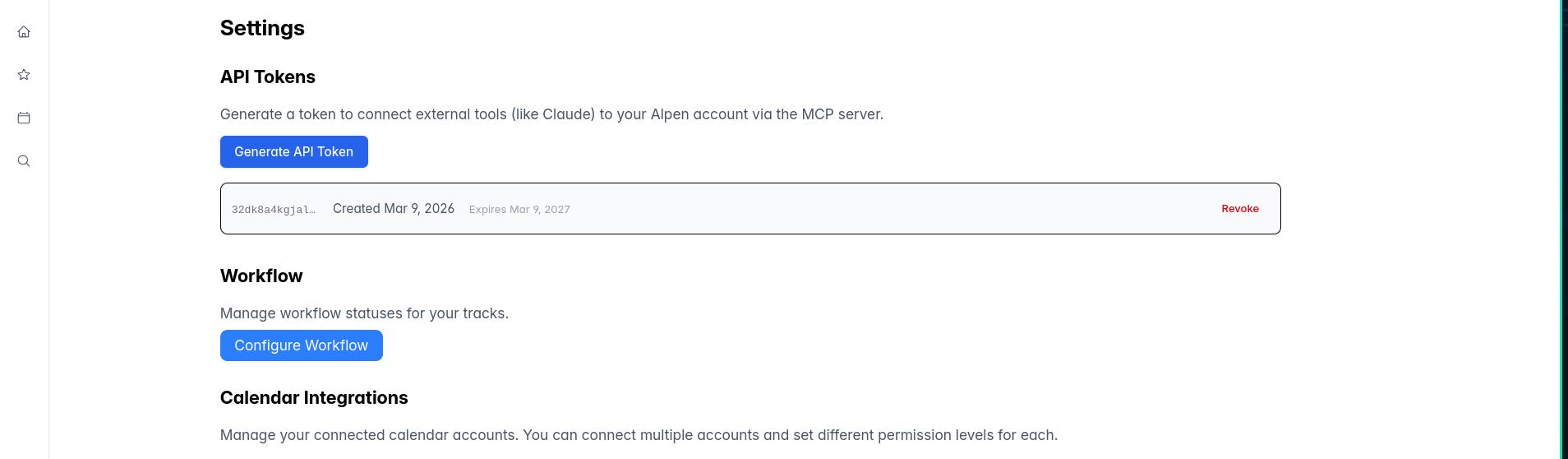
Keep your token private. Anyone with it can read and write to your account. Make sure you store it safely
Since we won’t show the full token to you. You’ll need to create a new one if you forget it and revoke the old one.
Step 2: Install the Shortcut
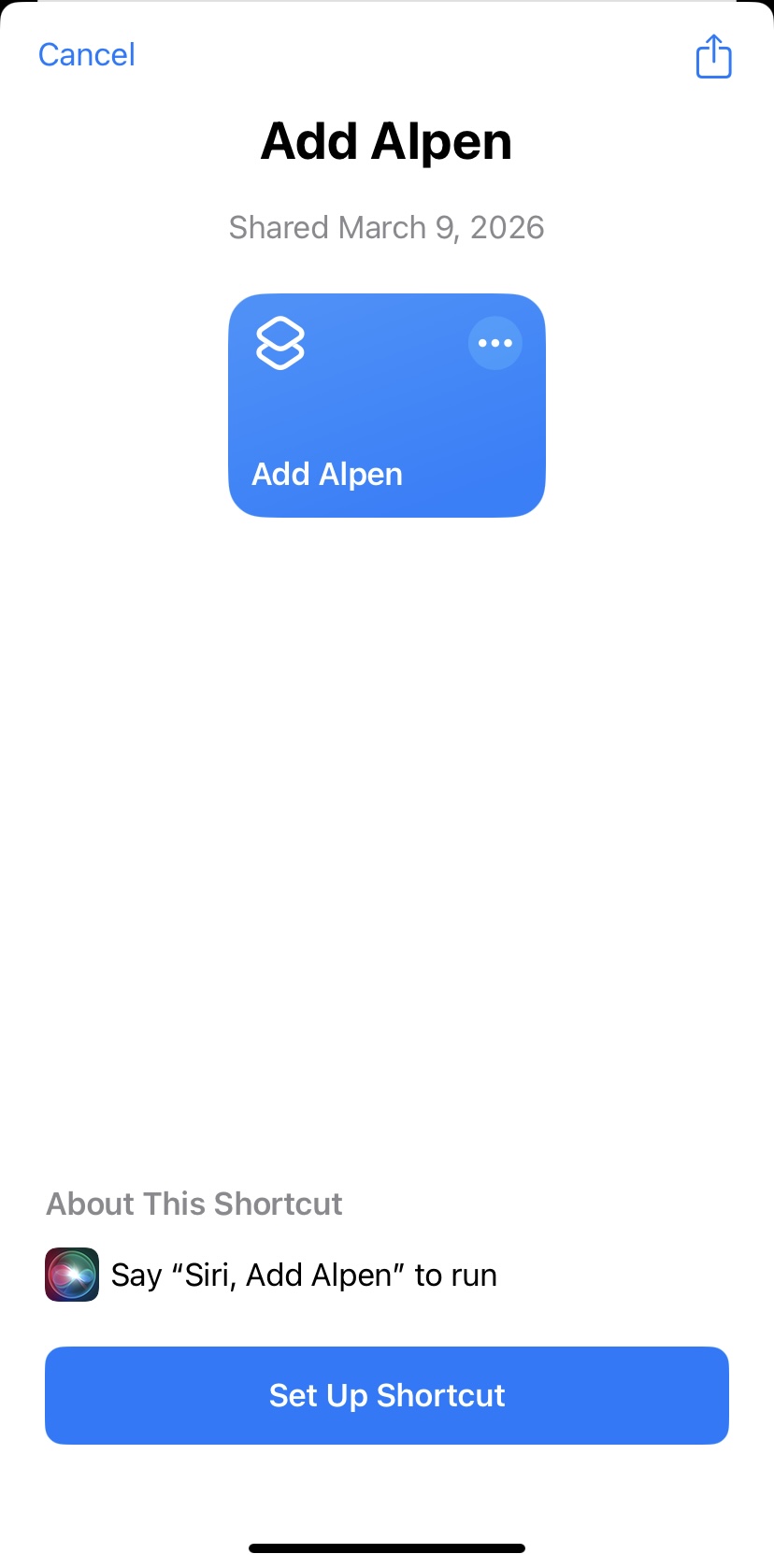
Tap the link below on your iPhone or iPad to add the shortcut to the Shortcuts app:
You’ll see the Add Alpen shortcut appear. Tap Set Up Shortcut to continue.
Step 3: Enter Your API Token
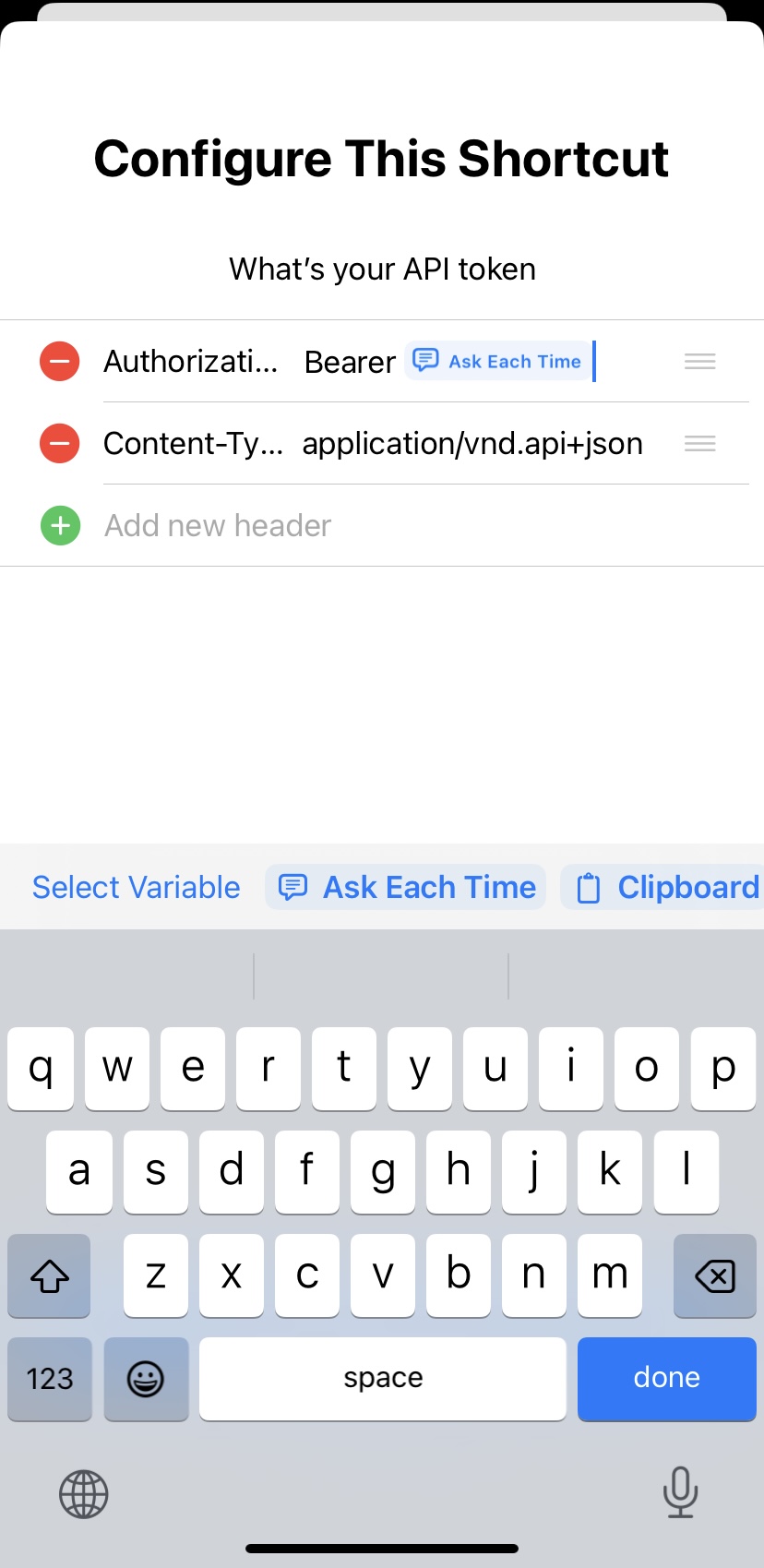
To make things obvious the shortcut will request the api token from you each time it runs. Obviously this isn’t what we want so at this point we’ll come in to remove the ‘Ask Each Time’ option and replace it with our token.
-
Tap the Ask Each Time field next to
Authorization: Bearer. - Paste the token you copied from Settings.
- Tap Done.
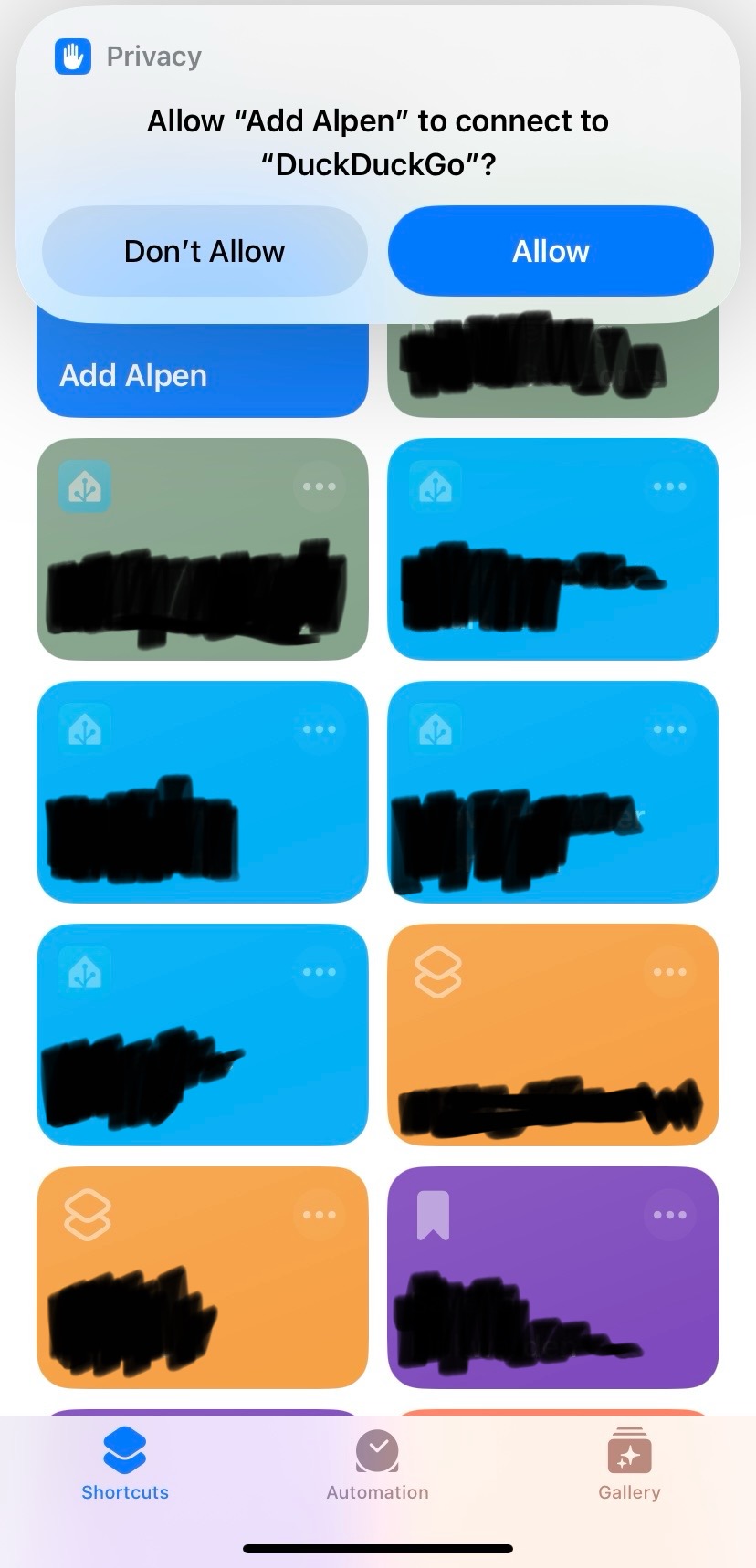
When you run the shortcut for the first time, iOS will ask permission to connect to the internet. In my case since I use DuckDuckGo it asks for permission through that. Tap Allow.
Step 4: Add to Your Home Screen (Optional)
Once installed, the shortcut appears in your All Shortcuts list. You can run it from there anytime.
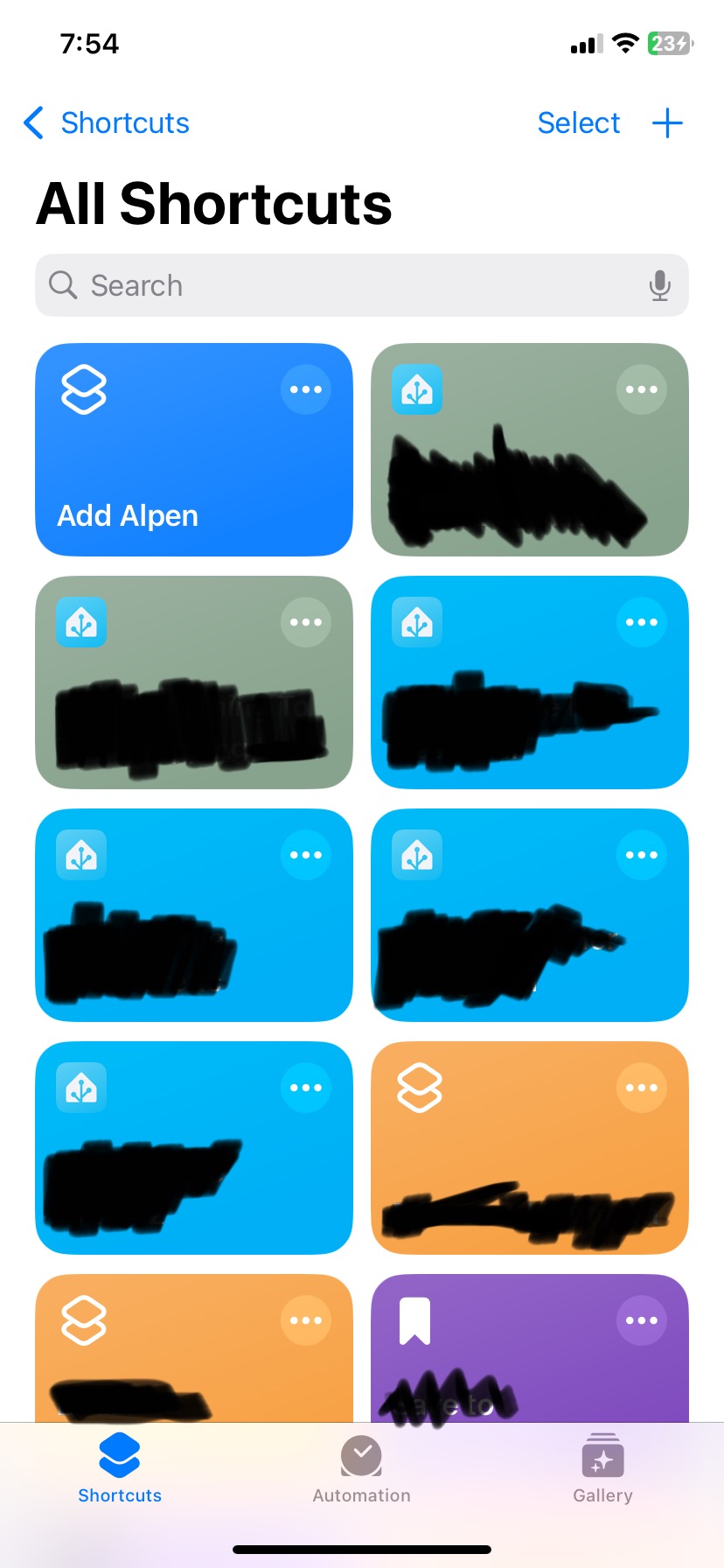
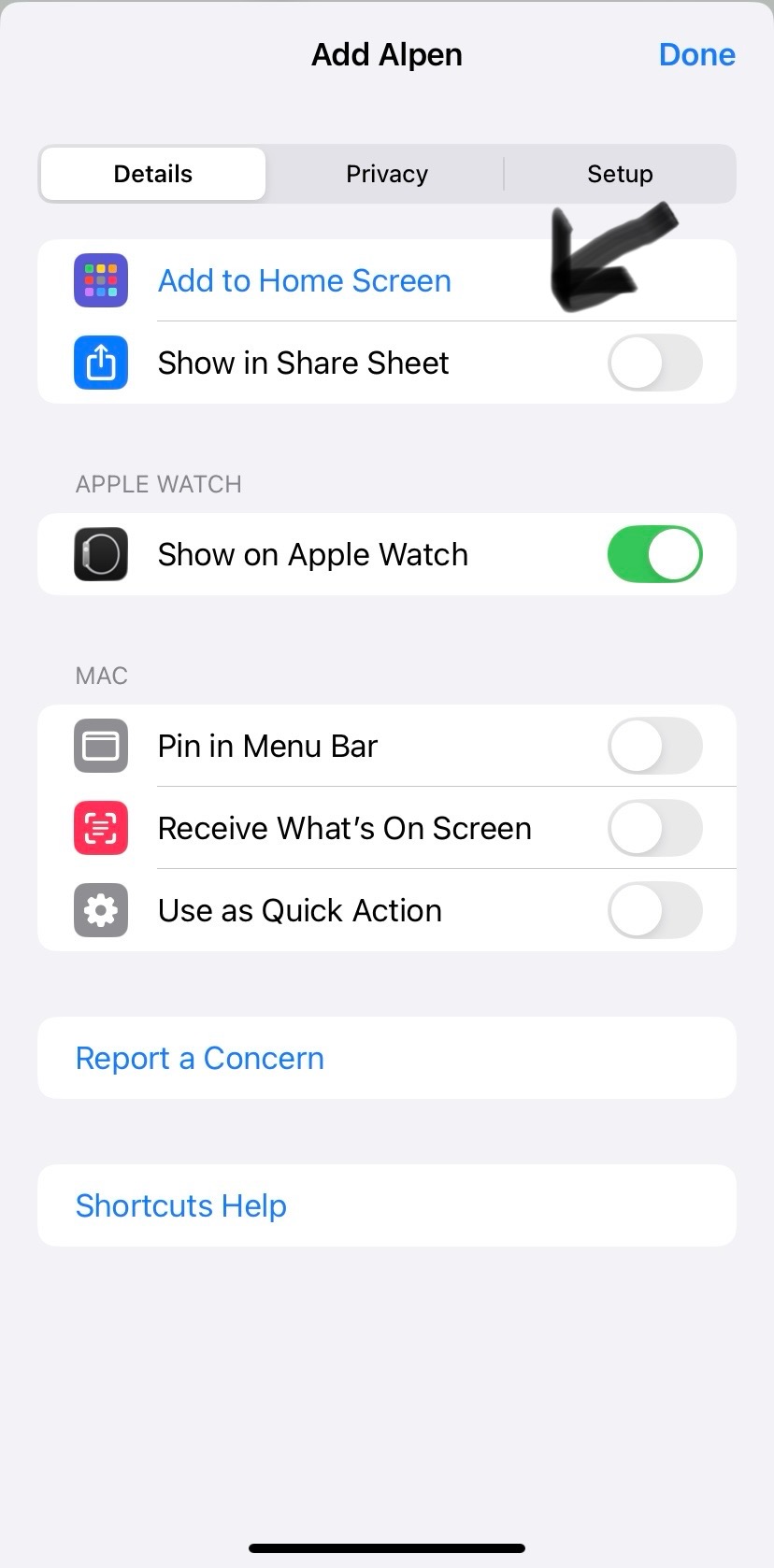
For even quicker access, I recommend adding it somewhere in the homescreen. I prefer using voice through Siri to add something but if I’m in an area where I can’t speak I can still add a todo by typing things in as we’ll see. To add it to your home screen. Open the shortcut details, go to the Details tab, and tap Add to Home Screen.
Using the Shortcut
From the Shortcuts app or home screen:
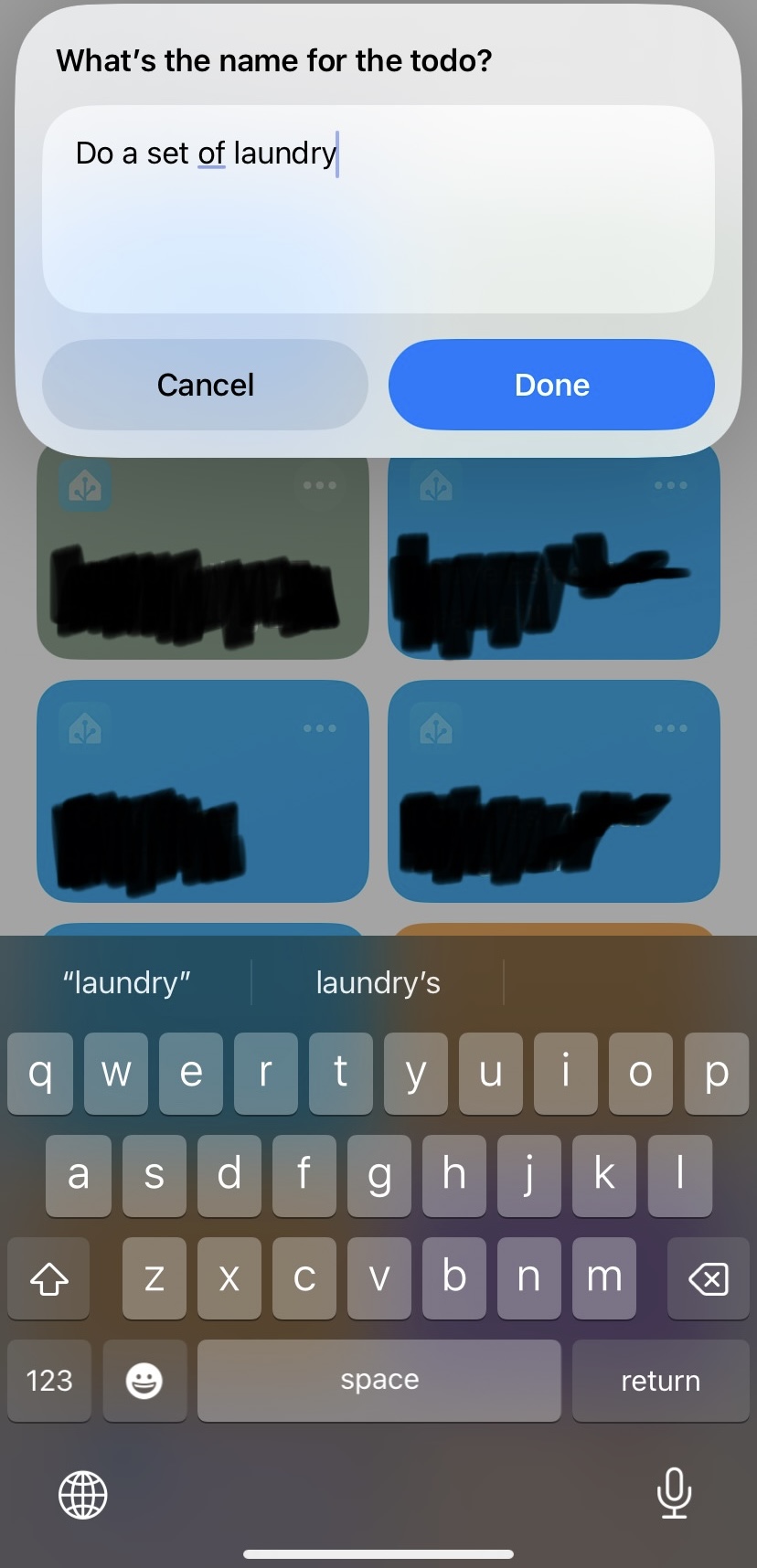
Tap the shortcut, type your todo name, and tap Done.
With Siri:
Say “Hey Siri, add Alpen” and Siri will ask you for the todo name. Dictate it and it’s done — no tapping required.
Where Todos Land
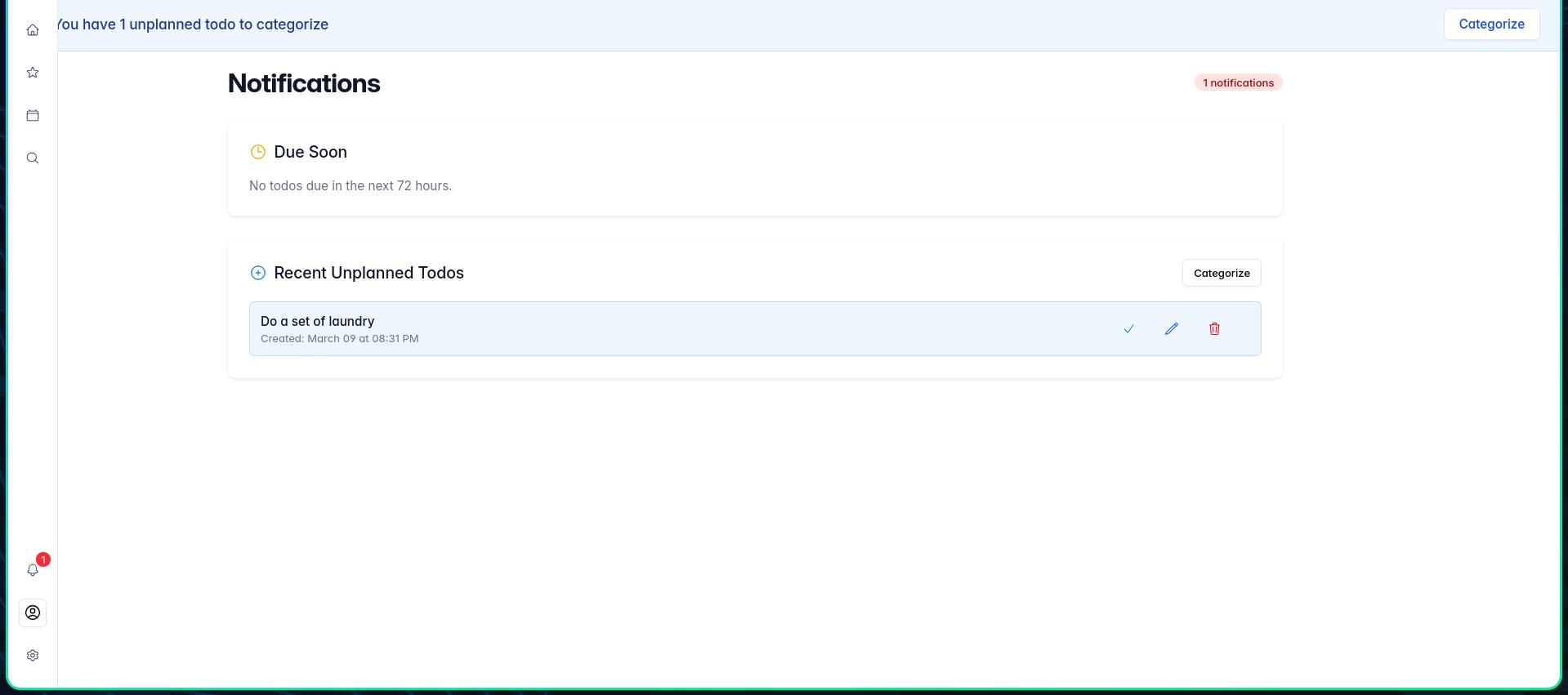
Every todo created by the shortcut goes straight into your Unplanned track. You’ll see it waiting in Alpen through the red notification badge to the left. You can click on the notifications badge and you’ll see a list of all the unplanned todos in your account that need to be triaged/categorized. We’ll cover that in a separate article.
Give it a Try
Feel free to try this out to really begin to feel the benefits of the Alpen philosophy. You’ll start to gain trust that those wavering thoughts won’t be lost in the chaos of your day and that your system will be there to catch you. All it takes is a little tap or a shout to Siri.
As always, feedback is always welcome. If an Android user has any suggestions on how to do the same thing on Android, please let us know. We’re always looking for ways to reduce the friction of using adding todos.
Troubleshooting
“Unauthorized” error — Your token may be wrong or revoked. Go to Settings, revoke the old token, generate a new one, and re-enter it when configuring the shortcut.
Shortcut not responding to Siri — Open the Shortcuts app, find Add Alpen, and confirm it’s listed under your shortcuts. Siri should pick it up automatically.